
Training sheet: career opportunities, testimonials, partners, and admissions
The "Career Opportunities" and "Admissions" sections of the training editor: targeted professions, alumni testimonials, partners, application steps, admission criteria, and documents.
Updated on 23 September 20262 min read
Career: Opportunities
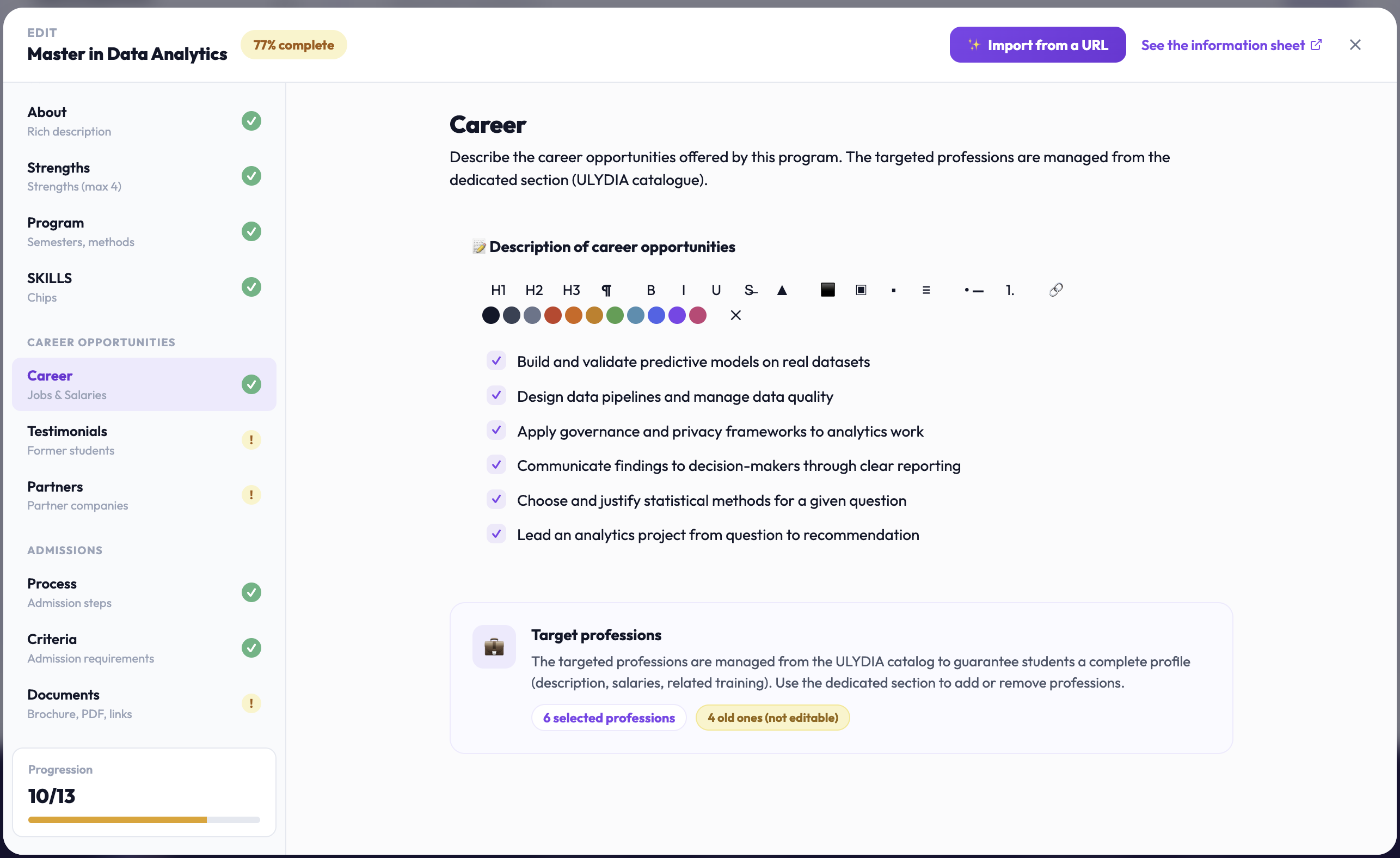
Description of opportunities: professional opportunities: sectors, types of positions, further studies. More than 30 characters are enough for the section to count according to the publication rules.
Targeted professions: professions are chosen from the Ulydia catalog, so that the student can access a complete job description (description, salaries, associated training). The counter indicates the number of selected professions.
Jobs added before the catalog was implemented may appear as "old (non-editable)". Replace them with the corresponding jobs from the catalog.
Testimonials
Reviews from former students. Click on Add a testimonial.
Photo: optional, click on the circle.
Testimonial: mandatory.
Name: mandatory, for example "Sophie M."
Role / status: example: "Alumni class of 2023".
Rating (1 to 5 stars): the given rating.
Common issue
"The testimonial and the name are mandatory."
Partners
Partner companies and organizations of this training. Enter the name, validate, then add a logo. A logo can be removed without deleting the partner. Logos of major organizations enhance the credibility of the profile.
Process: admission steps
The application steps, in order. Click on Add a step.
Title: example: "Online application", "Interview".
Duration: indicative, for example "10 min" or "2 weeks".
Description: what the candidate must do.
Admission criteria
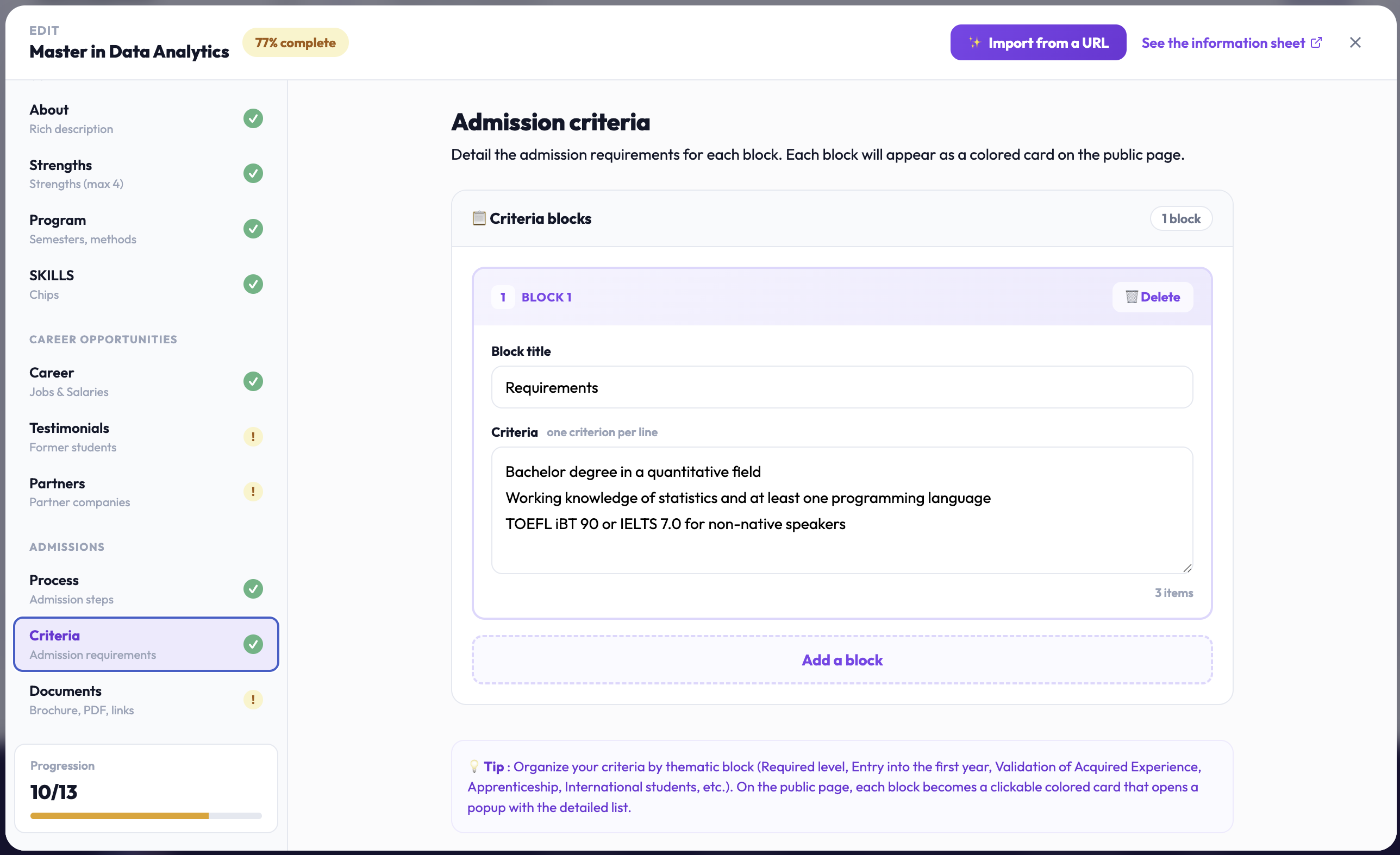
Admission conditions, by thematic blocks. On the public profile, each block becomes a colored card that opens the detailed list.
Block title: example: "Required level", "Access to 1st year", "VAE", "Work-study", "International students".
Criteria: one criterion per line. Example: "General Baccalaureate", then "Technological (STMG recommended)" on the next line.
Documents
Useful documents, displayed in the sidebar of the public profile.
Main brochure: the address (URL) of the presentation PDF.
Additional documents: click on Add a document, then choose the type (Brochure, Syllabus, Tuition fees, Admission conditions, Other link), the displayed label (e.g., "Detailed program (PDF)") and the document URL.
Documents are entered by their web address: first upload the PDF to your site or an online storage space, then paste its link.
Didn't find the answer?
The team replies within 24 hours on business days.