
Create and publish a course: the rules
Where to create a course, how recording works, what is required to publish, who can publish, your plan quotas, and error messages.
Updated on 23 September 20264 min read
Your courses are managed from Activity → Courses. Each course has its own public page, visible in the course catalog and on your school profile.
Create a course
Open Activity → Courses.
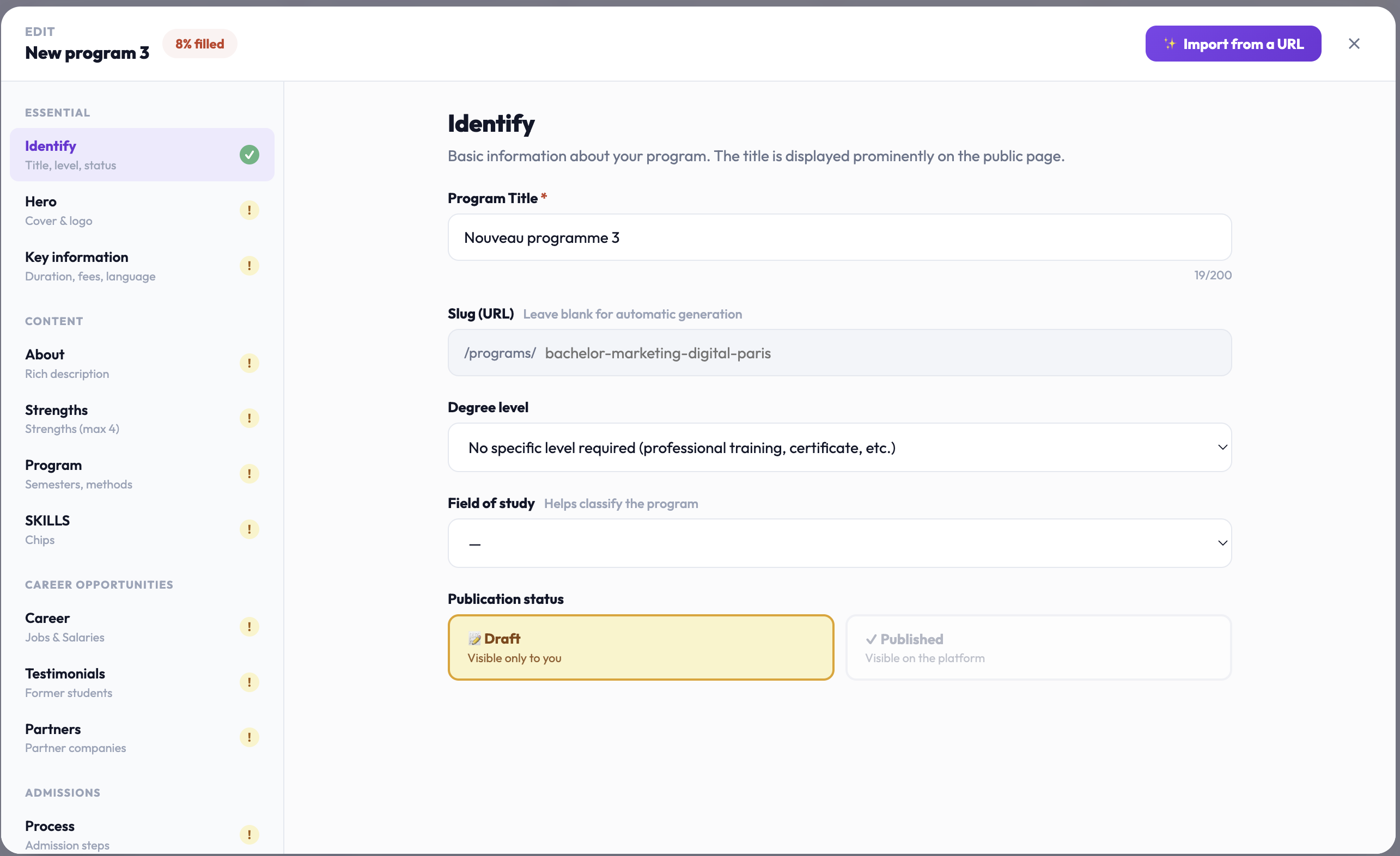
Click on Create a program. A draft page is created under the name “New program”: rename it in the Identity tab.
The editor opens in full screen. The left menu lists the tabs, grouped into four blocks: Essential, Content, Outcomes, and Admissions. A Progress gauge indicates the percentage completed.
Fill in the tabs. You can also start from an existing page with Import from a URL (see below).
Saving is automatic: each change is saved one and a half seconds after input. The indicator at the top shows “Saving…” then “Saved”. The View page button opens the public page.
What is required to publish
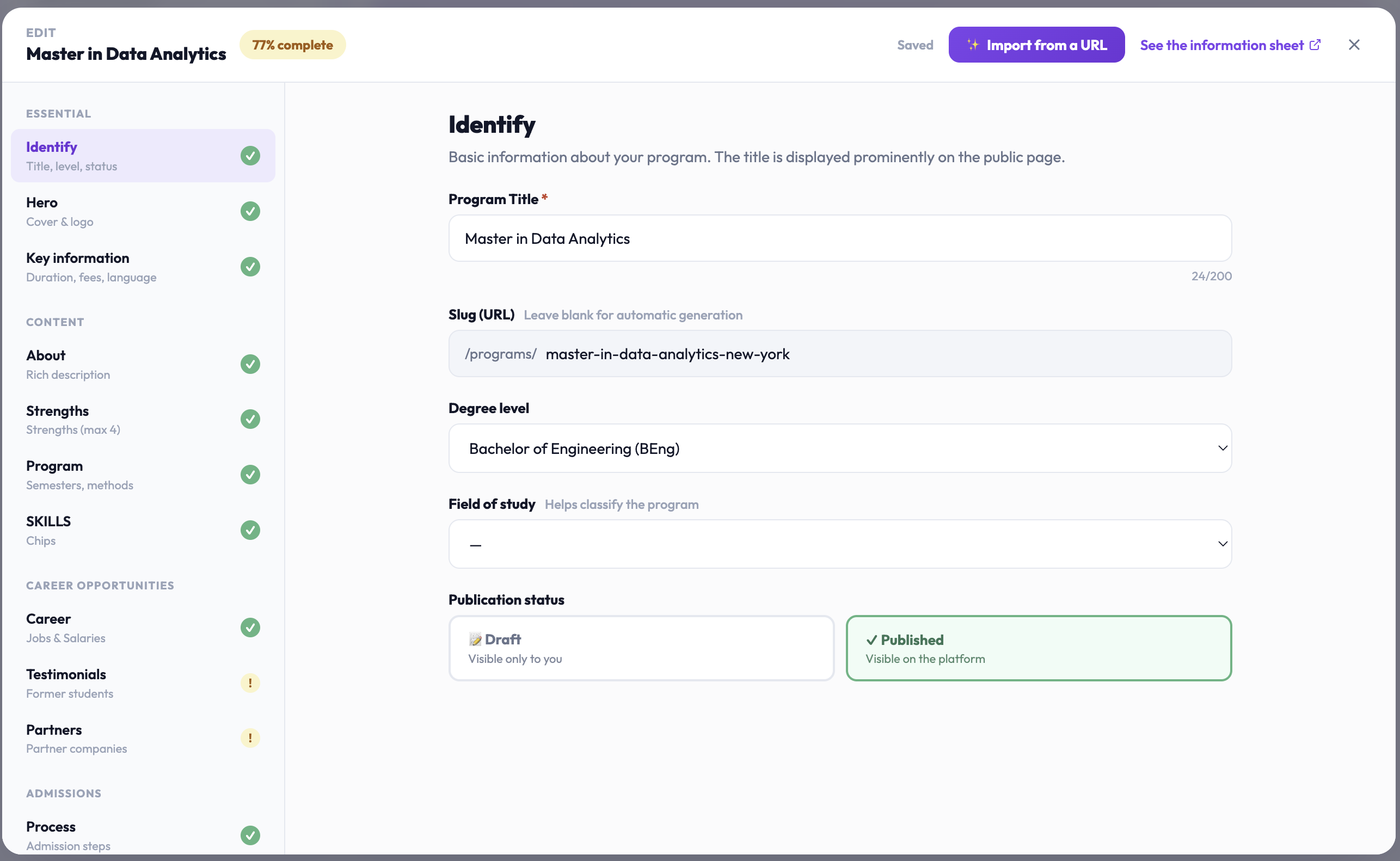
A course remains in Draft (visible only to you) until it is published. To switch to Published, three conditions must be met.
1. The diploma level
This is mandatory in the Identity tab. For a course without a diploma (professional training, certificate), choose “No specific level”.
2. At least 70% of the essential elements
Six elements are checked:
the program title;
the diploma level;
a description of at least 100 characters;
the city;
the duration;
the cost: enter 0 if the course is free; the field must not be left empty.
3. At least one content section
A page must tell the student what they will learn. At least one of these three contents is required:
the program: at least one semester, or a detailed program text of more than 30 characters;
the outcomes: a description of more than 30 characters, or at least one targeted profession;
the strengths: at least one strength.
If a condition is missing, the “Your page is not ready yet” window opens. It shows the percentage achieved and the list of elements, checked or not. Click on Complete the page → to return to the editor.
In your course list, the badges next to each course (title, description, city, logo, duration, fees, application link, brochure) indicate the quality of the page. They do not prevent publication: only the rules above matter.
Who can publish
Only the account owner and administrators can publish a course. An editor member can create and complete a page but must ask an administrator to publish it.
The number of published courses according to your plan
Your plan sets the number of courses published at the same time. Drafts do not count. The limits of each plan are detailed in the article about plans and on the Pricing page.
Import from a URL
In the editor, click on Import from a URL.
Paste the address of the page presenting the course: your site, an online brochure, a partner.
Click on Analyze with AI. The tool lists the sections found (semesters, detailed program, professions…).
Click on Apply to the page.
Warning: the import replaces the values already entered in the affected sections. Then review each tab: the AI may make mistakes or miss information.
Common issues
“The diploma level is required to publish”
Open the Identity tab and choose a level, or “No specific level”.
“This program is completed at X%. At least 70% is required to publish.”
The message lists what is missing: title, description of at least 100 characters, city, duration, or cost. For a free course, enter 0 in the cost.
“To publish, provide at least one content section”
Add a semester in Program, a description in Career, or a strength in Strengths.
“Your plan does not allow publishing courses”
Your current plan does not include any published courses. Change your plan from Plan & payments.
“You have reached your quota of published courses”
All courses allowed by your plan are already online. Unpublish one, or upgrade to a higher plan.
I can’t publish even though everything is filled
Check your role: an editor cannot publish. Ask the owner or an administrator.
“Save error”
Check your connection, then modify the field again to trigger saving. If the error persists, reload the page: what showed “Saved” is retained.
Didn't find the answer?
The team replies within 24 hours on business days.