
School profile: courses, campus, team, and media
The "Content" block of the school profile: the list of courses, campuses, the team and the director's message, the cover photo, photos, gallery, and video.
Updated on 23 September 20263 min read
This article details the Content block of Account → School profile. These sections make the profile lively and concrete for students.
Programs — 15 points: at least one published program.
Media — 8 points: a cover photo, a photo in the gallery, or a video.
Campus — 5 points: at least one campus.
Team — 3 points, optional: at least one member.
Programs
This section displays the list of programs visible on your public profile, with the number of published programs. It is not used to modify them: click on Manage programs, or open Activity → Programs. As long as no program is published, the Create my first program button is displayed.
See the article “Create and publish a program.”
Campus
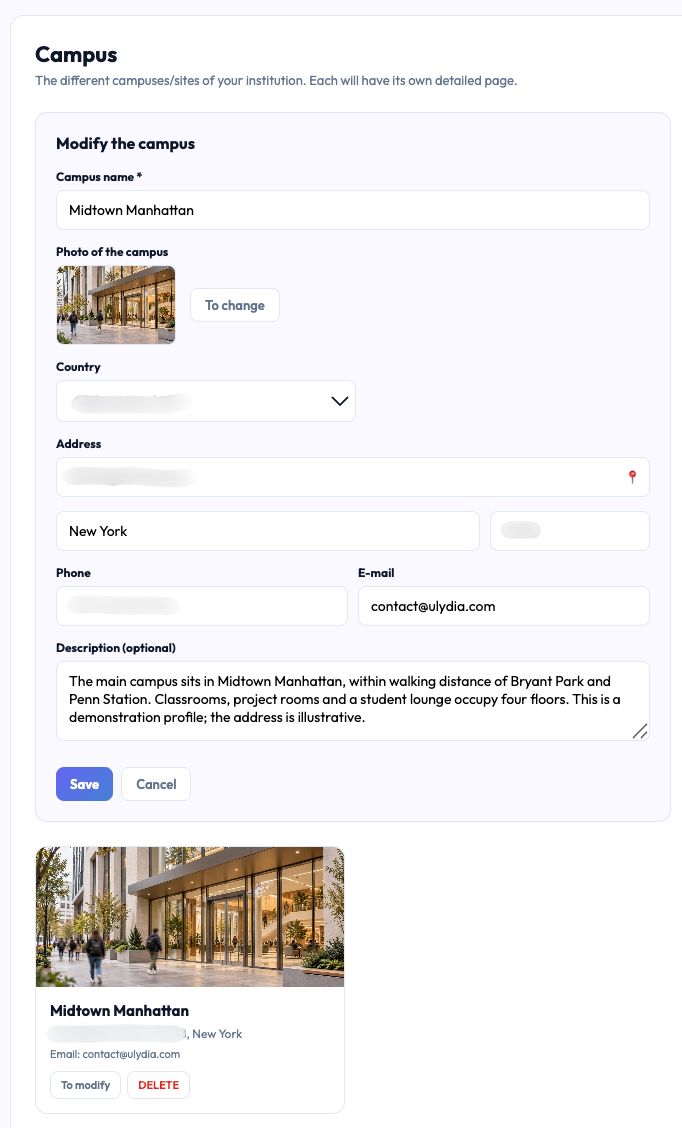
The different sites of your institution. Each campus has its own detailed profile. Click on + Add a campus.
Campus name: required. Example: “Campus Paris.”
Campus photo: a photo of the building or premises.
Address, postal code, city, and country: the site’s address.
Phone and email: contacts specific to this campus.
Description (optional): facilities, specifics, access.
Click on Create campus to save it. The Edit and Delete buttons then appear on each campus.
Common issues
“The campus name is required.”: enter the name before saving.
Team
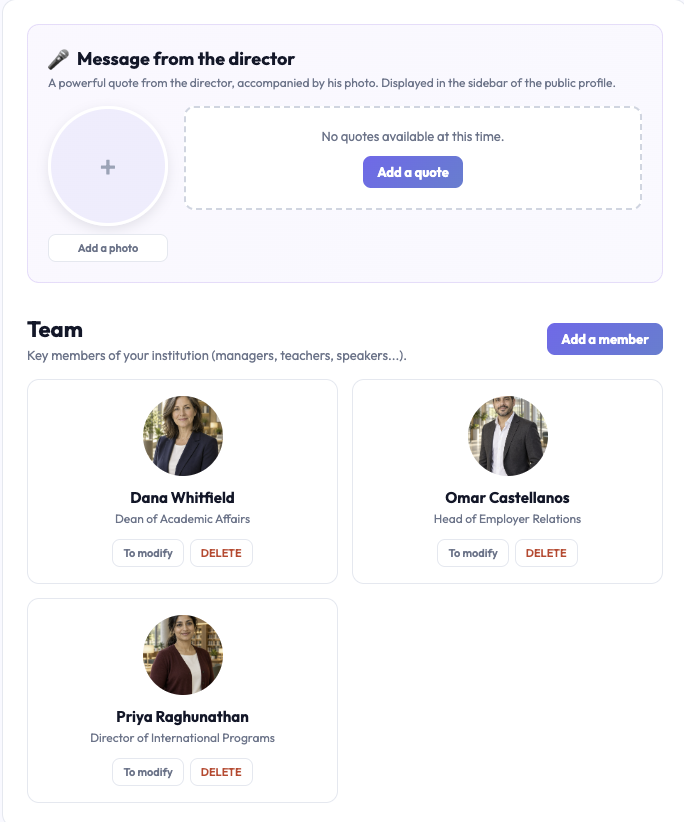
The key members of your institution: management, educational managers, teachers, speakers. Presenting the team humanizes the profile and builds trust.
Director’s message
A strong quote from the director, accompanied by their photo, displayed in the sidebar of the public profile. It is the same director’s message as in the About section: modifying it here also modifies it there.
Photo: click on the circle to add the director’s photo.
Quote: maximum 400 characters. Example: “Our ambition: to reveal everyone’s potential…”
Director’s name and position: example: “General Director.”
Members
Click on + Add a member.
Photo (optional): a portrait.
Full name: required. Example: “Marie Dupont.”
Role / position: required. Example: “General Director,” “Educational Manager.”
Personal message (optional): maximum 300 characters, a sentence that represents the person.
Common issues
“Name and role are required.”: both fields marked with an asterisk must be filled in.
Media
The cover photo, photos, and video that make people want to discover the school.
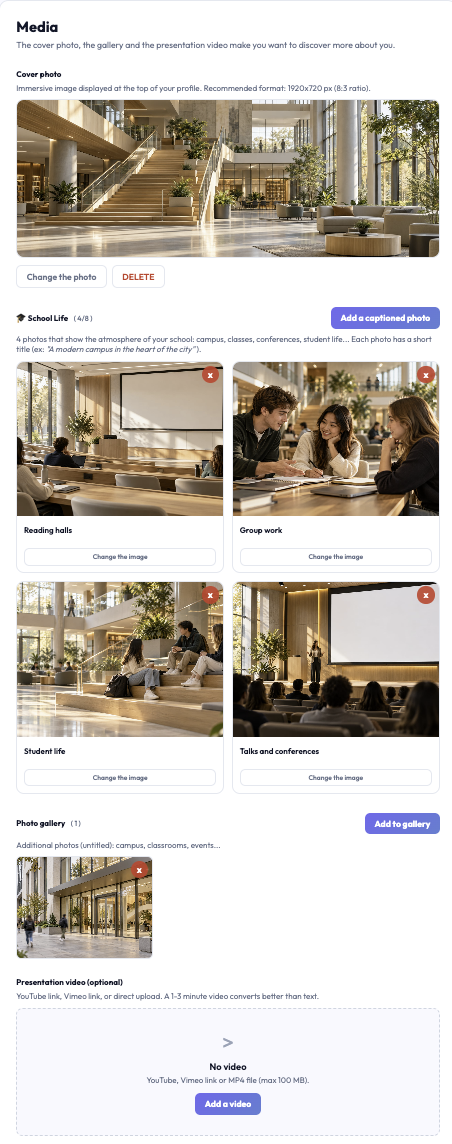
Cover photo: the immersive image at the top of the profile. Recommended format: 1920 × 720 px (8:3 ratio). Choose a wide photo, without important text on the edges.
🎓 Life at school: captioned photos showing the atmosphere: campus, classes, conferences, student life. Aim for 4 photos; the limit is 8. Each photo has a short title of maximum 80 characters (e.g., “A modern campus in the heart of the city”).
Photo gallery: additional photos without titles: classrooms, events, premises.
Presentation video (optional): a YouTube or Vimeo link (click “Save link”), or an MP4 file up to 100 MB (“Upload an MP4 file”). A 1 to 3-minute video convinces better than a long text.
Common issues
“You can add up to 8 photos maximum.”: delete a life at school photo before adding another.
“Invalid video URL”: paste the full address of the YouTube or Vimeo video (not the channel’s), or upload an MP4 file.
Didn't find the answer?
The team replies within 24 hours on business days.