
Public profile: testimonials, news, events, networks, partners, and URL
The "Communication" and "SEO Settings" sections of your profile: each field, what is mandatory, and how to choose a good address for your page.
Updated on 23 September 20263 min read
These sections under Account → School profile (or Company profile) show that your organization is active and credible. All are optional except for the SEO Settings.
Testimonials — 5 points.
News, Events, Partners — 3 points each, optional.
Social networks — 2 points, optional.
SEO Settings — 15 points: a defined page address.
Testimonials
Reviews from your students, alumni, or partners. Click on + Add a testimonial.
Testimonial: required. Example: “This school gave me the tools to succeed in digital…”
Name: required. To protect privacy, first name and initial are sufficient (e.g., “Sophie M.”).
Role / status: example: “Alumni class of 2023”.
Rating (1 to 5 stars): the rating given by the person.
Only publish genuine testimonials, with the consent of the people mentioned.
Common issues
“Name and testimonial are required.”
News
Important updates: graduation ceremonies, new partnerships, innovations. Click on + Add a news item.
Title: required. Example: “Graduation Ceremony 2026”.
Content: required, a few lines.
Image (optional): an illustrative photo.
Date and status: “Published (visible)”, “Draft (hidden)”, or “Archived”.
Common issues
“Title and content are required.”
Events
A simple list of your open days, webinars, and fairs, displayed on the profile. Click on + Add an event.
Title: required. Example: “Open Day”.
Start date: required; end date is optional.
Location: example: “Paris Campus”, “Online”.
Description: a few lines of presentation.
Registration link (optional): the address of your registration page.
Image (optional) and status: an illustrative image, and “Published (visible)”, “Draft (hidden)”, or “Archived”.
Events are automatically sorted into “Upcoming” and “Past”. To manage registrations directly on Ulydia, with tickets and attendee lists, use the Activity → Events module, available with a paid plan.
Common issues
“Title and date are required.”
Social networks
Paste the full address of your LinkedIn, Instagram, YouTube, TikTok, and Facebook pages. Each network is saved automatically when you leave the field. Leave a field empty to hide the network.
Partners
Companies, universities, or organizations you collaborate with. Enter the name in “Add a partner” (e.g., Microsoft, Thales), then add a logo with + Logo. Click on a name to rename it.
Tip: logos of major organizations strongly enhance credibility. Add a logo for at least 5 or 6 of your most well-known partners.
Common issues
“This partner is already in the list.”
“Another partner already has this name.”: choose a different name by renaming.
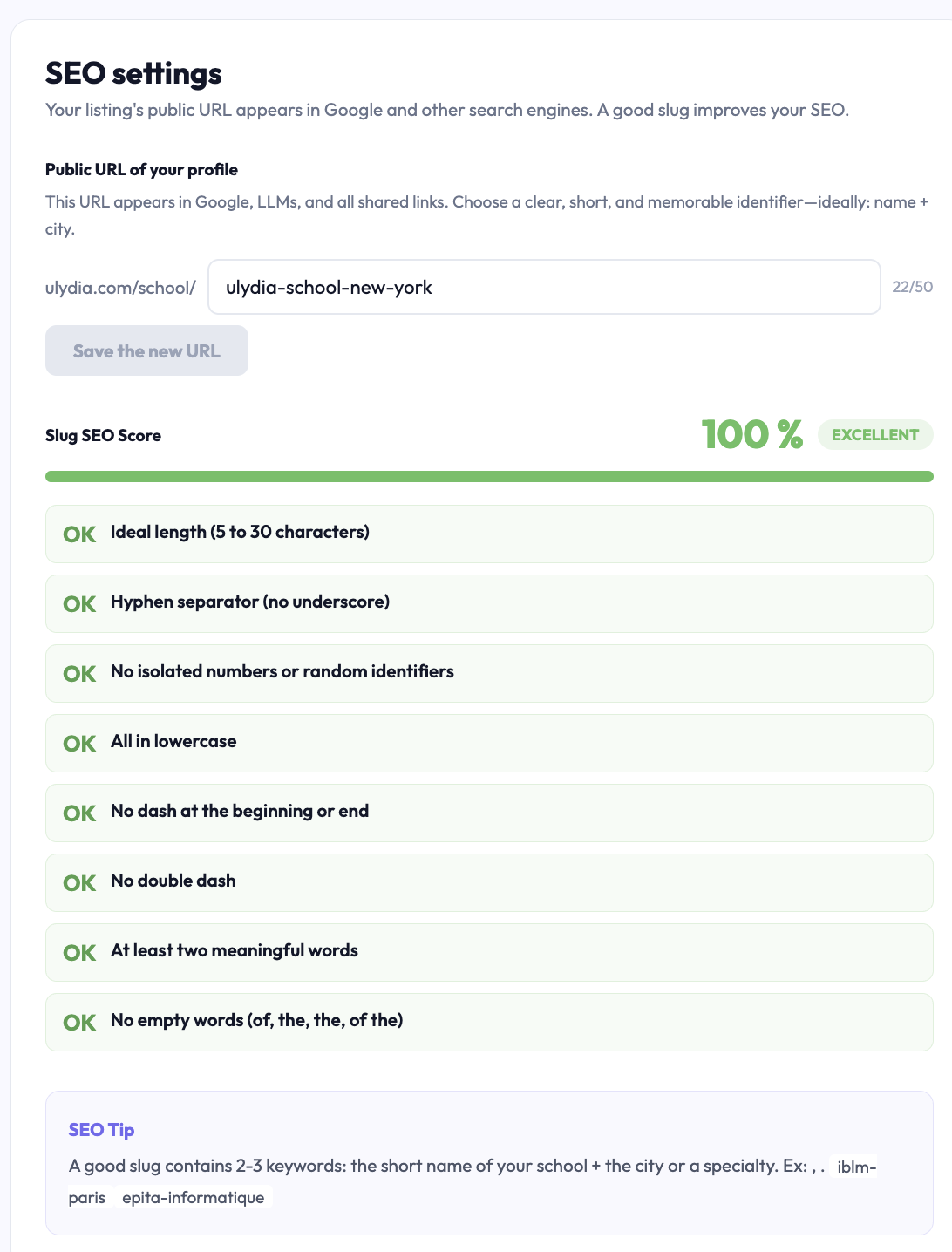
SEO Settings: your page address
The public URL of your profile appears in Google, AI assistants, and all shared links. Choose a clear, short, and memorable identifier: ideally the short name of the school and the city or specialty (e.g., business-school-lyon).
While typing, an SEO slug score (Excellent, Good, Average, Needs improvement) checks these rules:
between 5 and 30 characters;
dashes as separators, never underscores;
no isolated numbers or random identifiers (avoid -514aba or -2024);
all lowercase;
no dash at the start, end, or double dashes;
at least two meaningful words;
no stop words: business-school-paris rather than the-business-school-of-paris.
Availability is checked live. When the message “Available - you can save.” appears, click on Save the new URL.
Common issues
“Already used by another school.”: add the city or a specialty.
“Minimum 2 characters.”
Didn't find the answer?
The team replies within 24 hours on business days.