
Create an account on Ulydia
Choose your profile (student, job seeker, school, company), claim or add your institution, confirm your email, and resolve any issues.
Updated on 23 September 20264 min read
Many Ulydia contents can be viewed without an account: professions, training, schools, orientation test. An account is used to save your favorites, apply, contact a school, or manage your institution's profile.
1. Open the registration
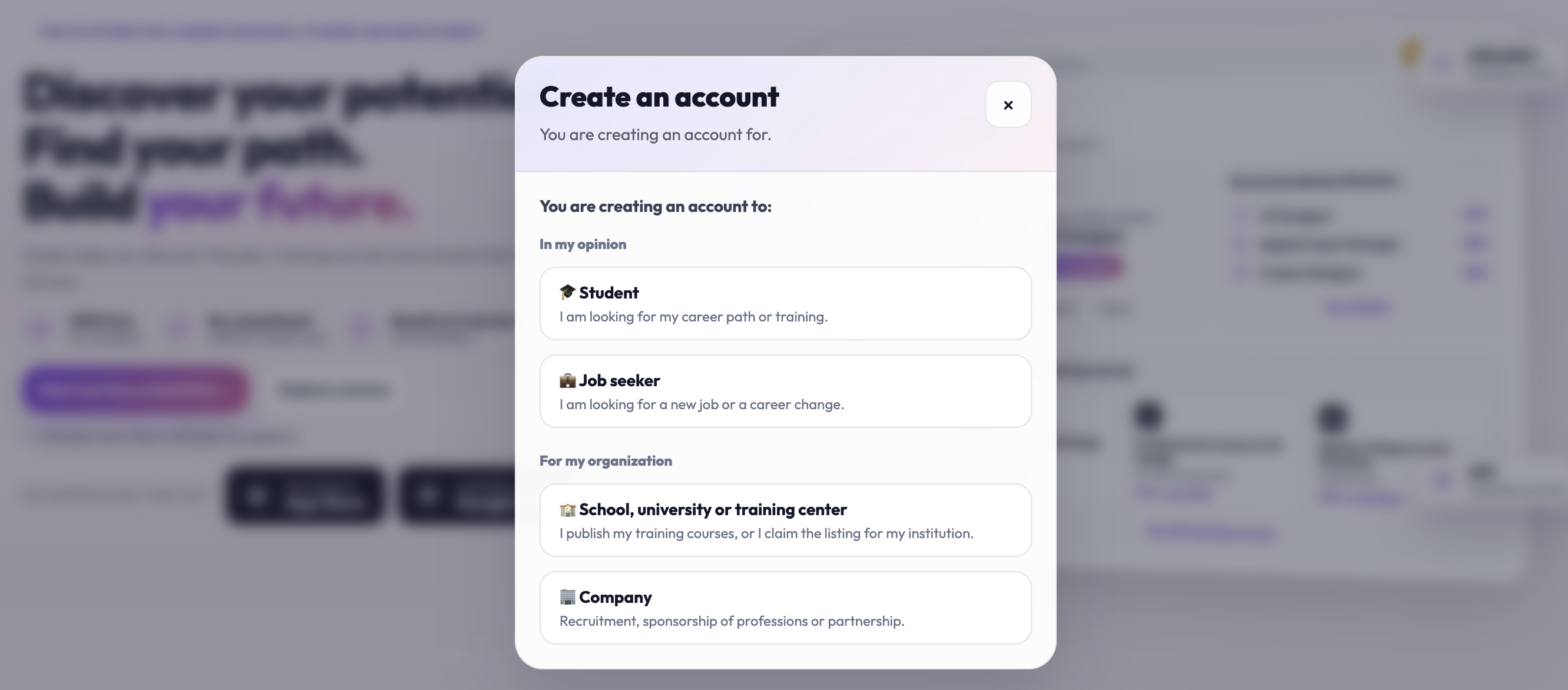
Click on Sign up, at the top right of the page. The "Create an account" window opens.
2. Choose your profile
The window asks for whom you are creating the account. This choice is final, and the same email address cannot be used for two profiles.
For me
🎓 Student: you are looking for your orientation or training.
💼 Job seeker: you are looking for a new profession or a career change.
For my organization
🏫 School, university or training center: you publish your trainings, or claim your institution's profile if it is already on Ulydia.
🏢 Company: recruitment, profession sponsorship or partnership.
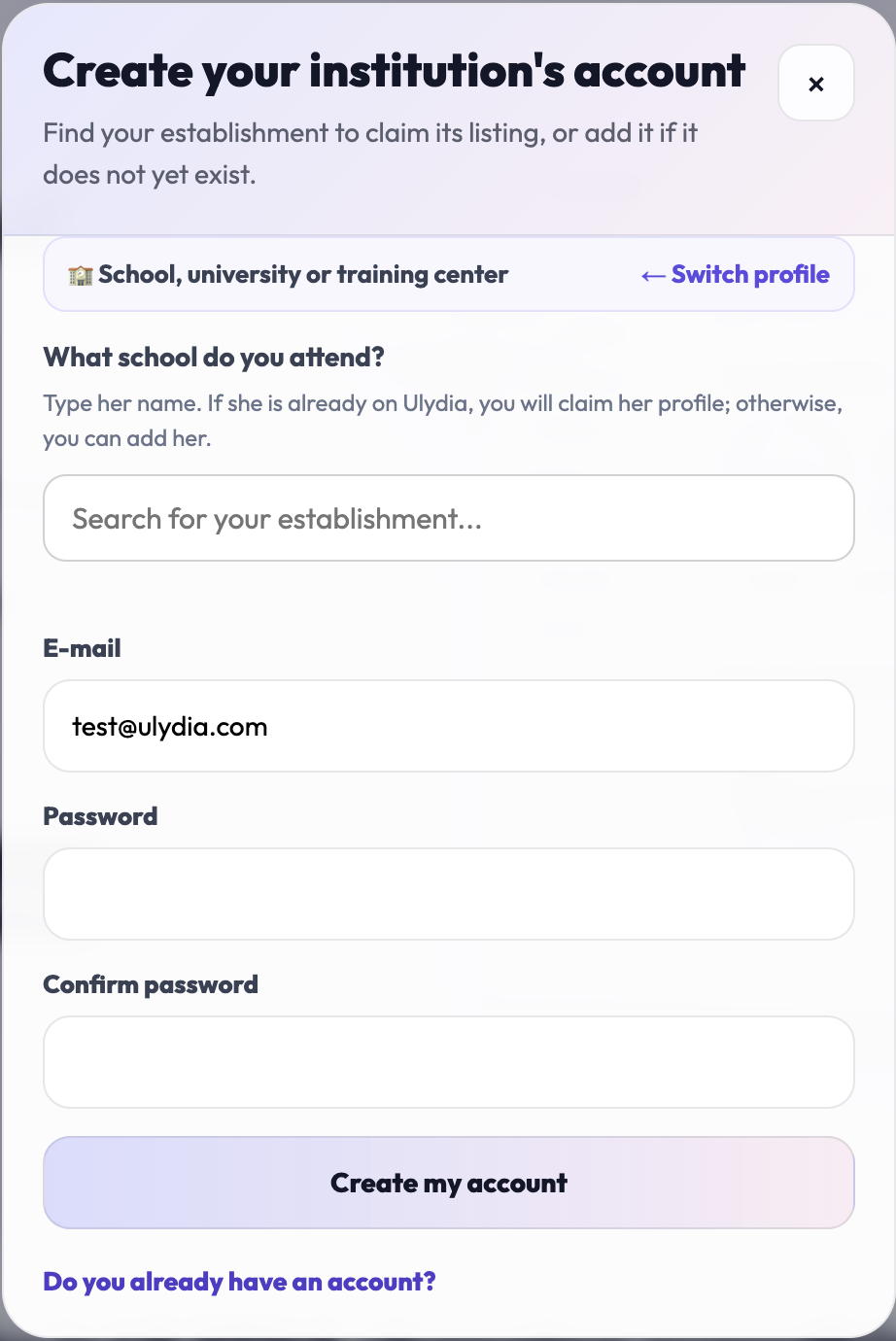
Once the profile is chosen, the window title changes (for example "Create your institution's account") and a banner reminds you of your choice. Made a mistake? Click on ← Change profile.
Tip: for an institution or company account, use your professional email address. Keep your personal address for a student account.
3. School: find or add your institution
For a school, the window first asks "What is your school?". Type its name:
It appears in the list: select it. The message "✓ You claim: [name]" confirms that your account will be linked to its profile, with its trainings.
It does not appear: click on the option to add it. The "Add your institution" form asks for its name, city and, if you wish, its website. If a very similar institution already exists, it is offered instead; otherwise, yours is created then verified by the Ulydia team.
Did you arrive from a school profile? The Claim button in the "Do you represent ... ?" banner directly opens the registration with the "Claim the profile of [name]" banner. Use your professional email: validation is automatic when its domain matches the school's website.
4. Fill out the form
Email: the address where you will receive the confirmation code.
Password: minimum 6 characters. Choose one you do not use anywhere else.
Confirm password: the same password, a second time.
For a school or a company
Type of company: school, university, training organization, company, public organization, association or other.
Type of institution: for a school: high school, grande école or educational institution.
For a student or a job seeker
Two boxes must be checked:
"I confirm I am at least 16 years old."
acceptance of the Terms of Use and the Privacy Policy.
Then click on Create my account.
5. Confirm your email address
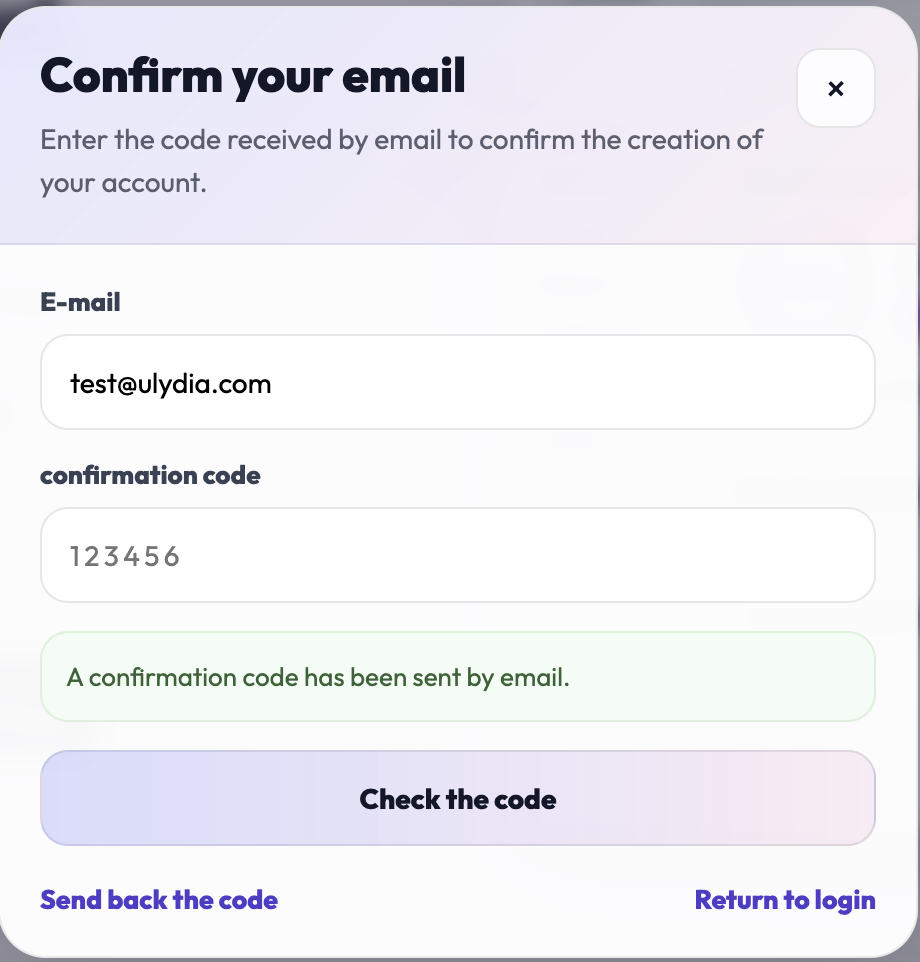
The message "A confirmation code has been sent by email" appears, and the window becomes "Confirm your email".
Open the email received from Ulydia.
Enter the code in the Confirmation code field.
Click on Verify code.
The message "Email confirmed. You are now logged in." confirms the account creation.
Common issues
I do not receive the code
Wait a minute, check the spam folder (especially on Yahoo and Outlook), then click on Resend code. Also check the spelling of the entered address.
"The code has expired. Request a new code."
Click on Resend code and use the most recent one: each new sending replaces the previous one.
"Invalid code."
Copy the code without spaces, using the last email received.
"An account already exists with this email. Log in or use 'Forgot password'."
You already have an account: log in, or reset your password.
"A personal account already exists with this email."
This address is already used for a student or job seeker account. To create your institution's account, use a professional address.
"A professional account already exists with this email."
This address is already used for an institution account. For a student account, use a personal address.
"This school is already claimed"
Another account already manages this profile. If you are part of the institution's team, request an invitation from the account owner, or write to us from the Contact page.
"The password must be at least 6 characters."
Make your password longer.
"Passwords do not match."
The two entries differ: retype them.
"You must confirm that you are at least 16 years old to create an account."
Check the age box, and the acceptance of the terms.
"Too many attempts. Try again in a few minutes."
For security, attempts are limited. Wait a few minutes before trying again.
Didn't find the answer?
The team replies within 24 hours on business days.