Getting started with your space
The step-by-step dashboard: profile, public page, first training or offer, team and indicators, with solutions to the most common obstacles.
Updated on 23 September 20264 min read
This guide is intended for schools, universities, training centers, and companies. It guides you from creating your account to your first publication and addresses the most common obstacles.
Access your dashboard
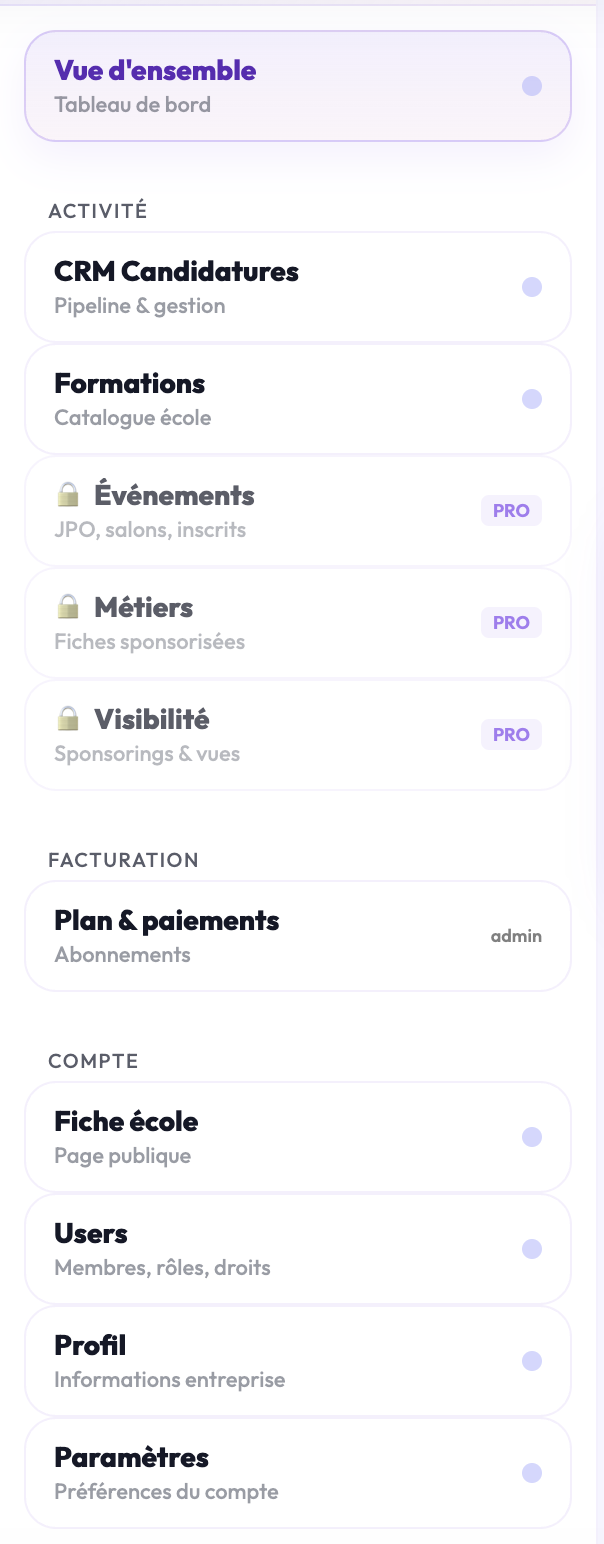
Log in, then click on your name at the top right of the page. Your dashboard opens, with the menu on the left.

The menu is organized into four sections:
Overview: your key figures.
Activity: for schools and centers, CRM Applications, Programs, Events, Careers, and Visibility; for companies, CRM Candidates, Job Offers, Job Descriptions, Visibility, and Events.
Billing: Plan & payments.
Account: School profile or Company profile, Users, Profile, and Settings.
With the freemium offer, some sections display a lock: they unlock with a paid plan, from Plan & payments.
Step 1: complete your profile
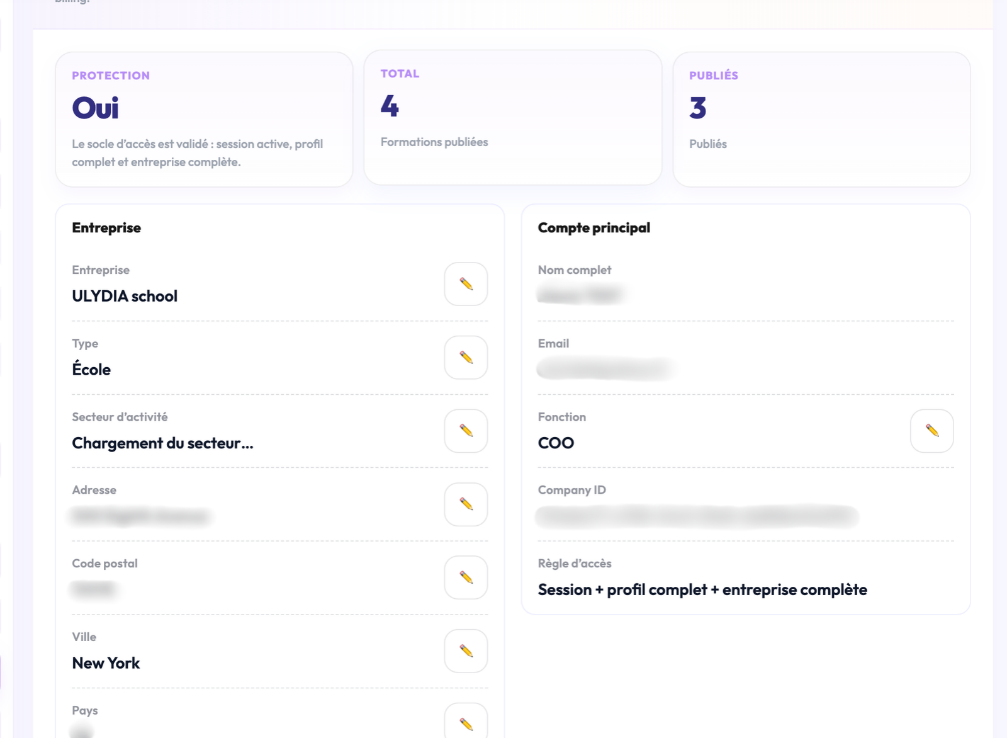
At your first login, the Profile panel opens automatically. It will reopen as long as one of these four pieces of information is missing:
your first name;
your last name;
the name of your organization;
the type of organization (school, training center, company…).
To return to it later: Account → Profile.
Step 2: complete your public profile
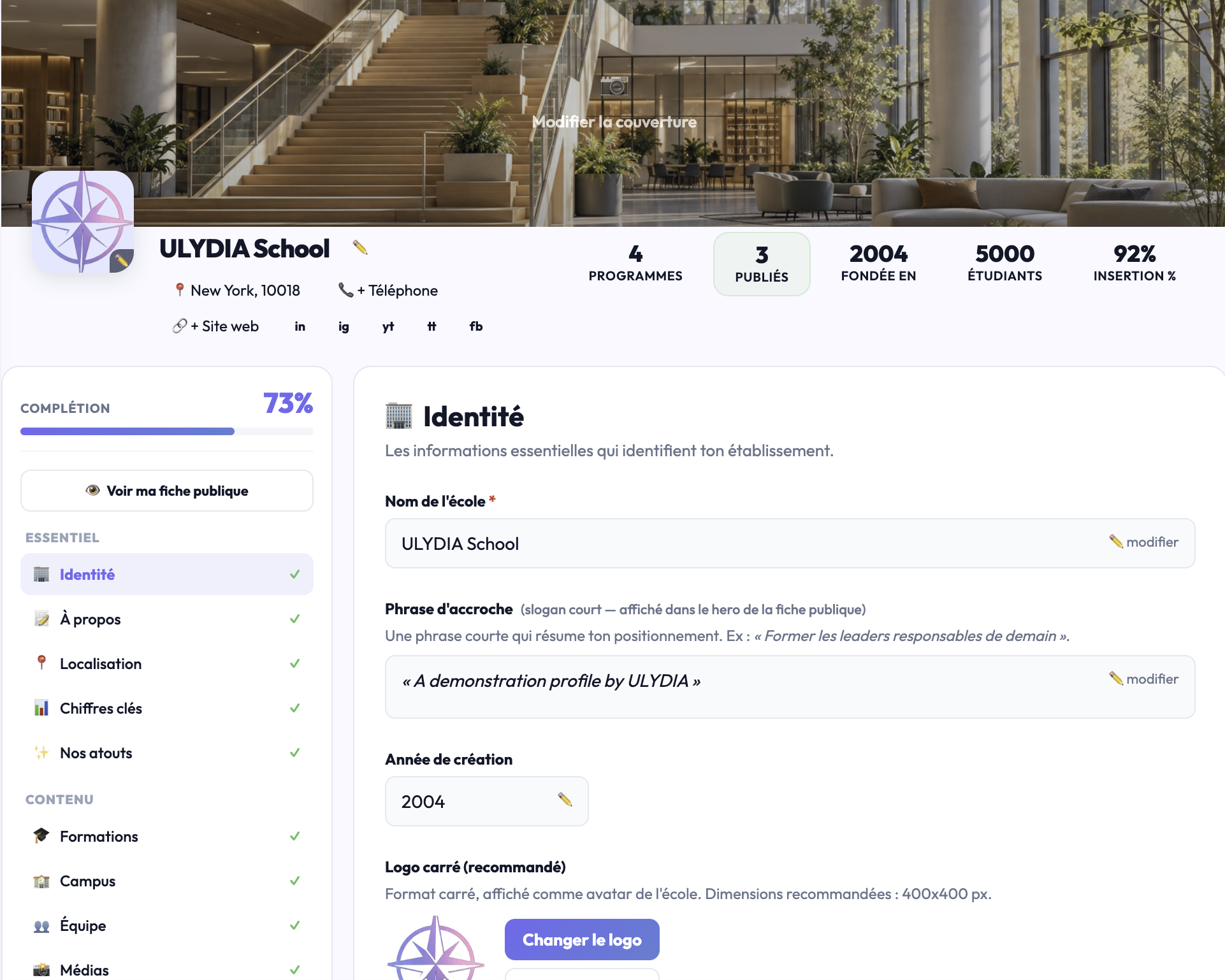
Your public profile is the page seen by students and candidates. Open Account → School profile (or Company profile). It is divided into sections:
The essentials: Identity, About, Location, Key figures, Our strengths.
Content: Programs and Campus for schools; Job offers, Recruitment, and Benefits for companies; Team and Media for all.
Communication: Testimonials, News, Events, Social networks, Partners.
Advanced settings: SEO settings.
Click the pencil icon of a section to edit it, changes are saved automatically. Start with the essentials: these sections weigh most in the completeness rate of your profile.
Does your institution already exist on Ulydia? Do not create a duplicate. Open its profile from the school catalog: a banner "Do you represent …?" appears under the header. Click Claim → and create your account in the window that opens: it will be directly linked to this profile.
Step 3: publish your first content
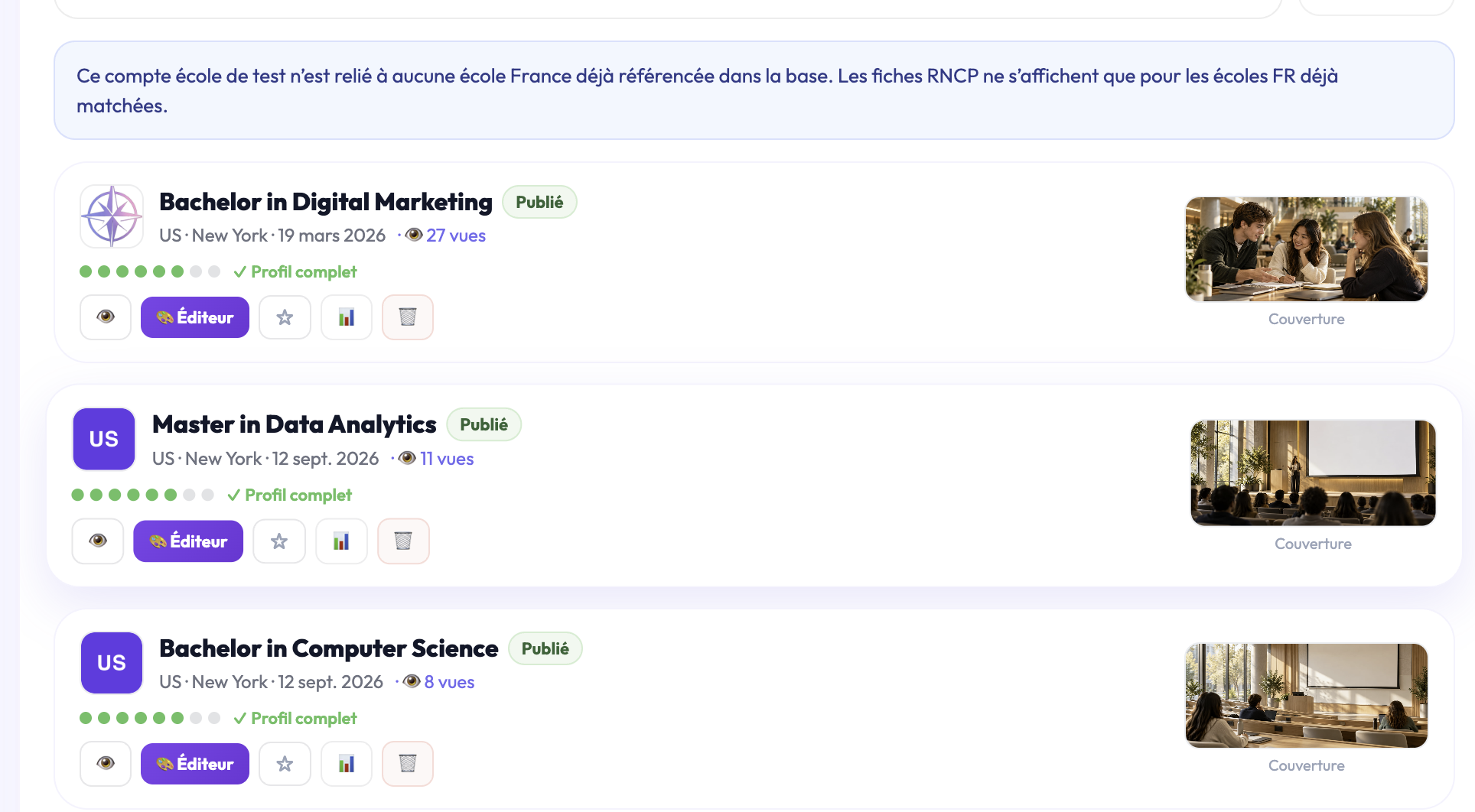
Schools and training centers: a program
Open Activity → Programs.
Click on Create a program.
Fill out the form. Eight elements count towards its completeness: title, description, city, logo, duration, fees, application link, and brochure. The dots next to each program show what is missing.
Click Publish.
A program can be published starting at 70% completeness. Below that, the "Your profile is not ready yet" window lists the missing elements: click Complete the profile → to add them.
Companies: a job offer
Open Activity → Job Offers and create your offer. This section requires a paid plan.
Screenshot to add: the Job Offers section.
Step 4: invite your team
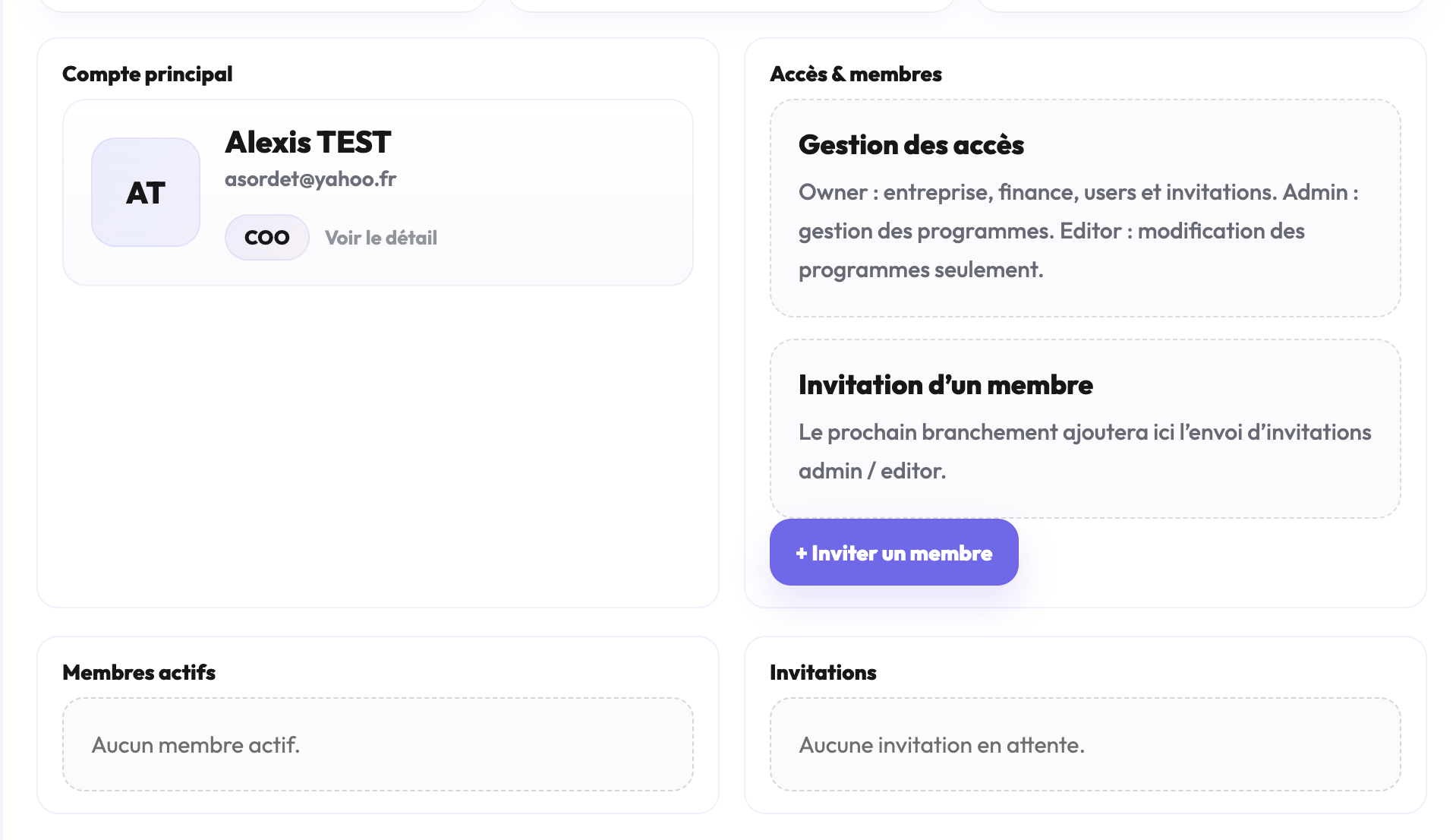
Open Account → Users, then click + Invite a member. Only the account owner can invite.
Each member has a role:
Owner: full access, only one who can invite.
Administrator: access to the team and Plan & payments.
Editor: creation and editing of programs and content, without access to billing or the team.
Step 5: track your results
The Overview gathers your indicators: published programs, student leads, applications, views of your programs, and views of your page.
Screenshot to add: the Overview with its indicators.
Common issues
The Profile panel opens at every login
One of the four pieces of information from step 1 is missing. Complete the first name, last name, organization name, and its type, then save.
A menu section displays a lock
It is not included in the free offer. Check the plans in Plan & payments.
I don’t see either “Plan & payments” or “Users”
Your role is “Editor.” Ask the account owner to make you an administrator if you need it.
I don’t see the “Invite a member” button
Only the owner can invite. Ask them to send the invitation.
“Your profile is not ready yet” when I publish a program
The program does not reach 70% completeness. Click Complete the profile →: the missing elements are listed.
“You have reached the limit” of published programs
The free offer limits the number of programs published at the same time. Unpublish one, or upgrade to a paid plan to publish without limits.
“This school is already claimed”
Another account already manages this profile. If you are part of the institution’s team, write to us from the Contact page: we will verify the situation.
My institution does not appear in the catalog
Create it during registration, with its name, city, and country. If a very similar institution already exists, it will be offered to you instead. Otherwise, yours is created and then verified by the Ulydia team.
Didn't find the answer?
The team replies within 24 hours on business days.