
Invite a member and understand the roles
How to invite a collaborator, what the owner, an administrator, and an editor can do, and what to do when a button is missing.
Updated on 29 September 20261 min read
Multiple people can manage your space, each with their own access.
Invite a member
Open Account → Users.
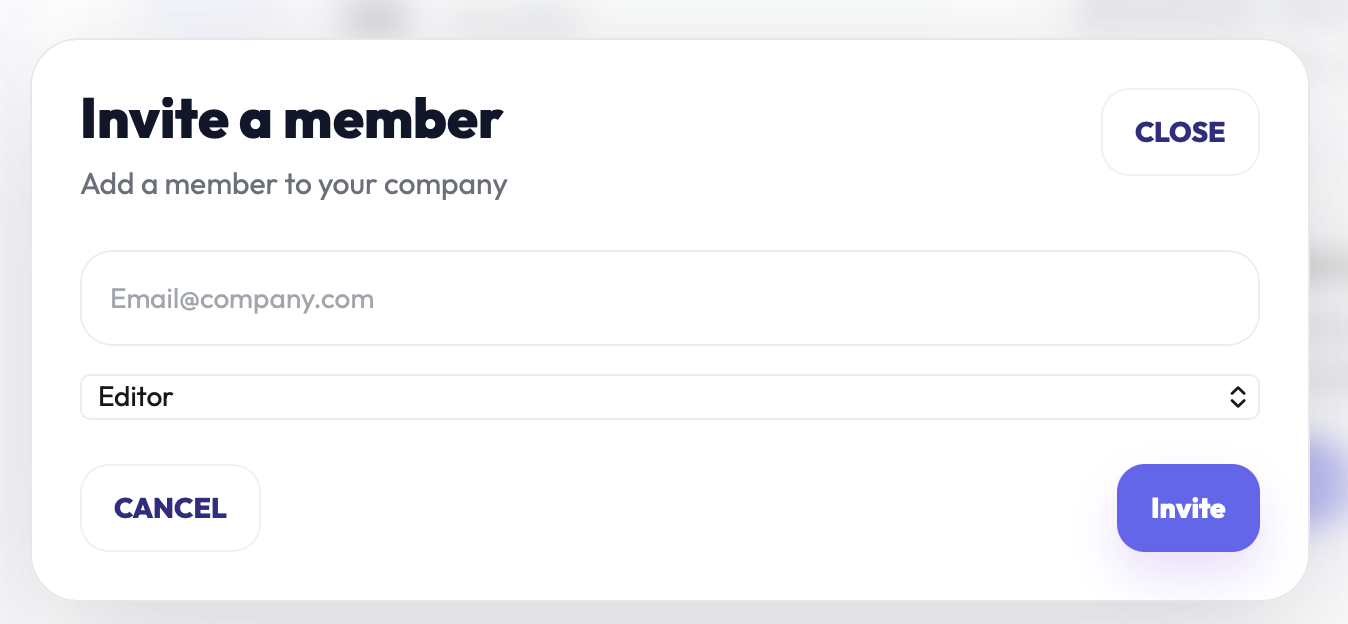
Click on Invite a member.
Enter the person's professional email address.
Choose their role: Admin or Editor.
Click Invite. The message “Invitation created ✔” confirms the sending.
The invitation appears in the Invitations list until it is accepted. Once the account is activated, the person moves to Active members.
The roles
Owner: full access, including billing. They are the only one who can invite members.
Administrator (Admin): access to Users and Plan & payments, and publishing courses.
Editor: creating and editing courses and content. They do not see billing or the team, and cannot publish a course.
Your role is indicated in Users, under “Your role”.
Common issues
I don’t see the “Invite a member” button
Only the owner can invite. The message “Only an owner can invite other members.” is shown for other roles.
I don’t see either “Users” or “Plan & payments”
You are an editor. Ask the owner if you need these accesses.
The person did not receive the invitation
Ask them to check their spam folders and the spelling of the entered address. If the address was wrong, invite them again with the correct one.
Didn't find the answer?
The team replies within 24 hours on business days.